Showing posts with label Google. Show all posts

Sunday, July 30, 2023

Pixel Green Screen of Death

While on vacation, my Google Pixel phone experienced the Green Screen of Death.  Basically, what happens is that the screen will either not turn on at all, flash a few lines, or flicker a primarily green color before the whole display turns dark.  The phone is still functioning in the background as you can hear the notifications and it still senses your finger touches, but you can't see anything.  

I had a separate tablet with me on the trip so I quickly searched to see if this is a known issue and if there was any easy fix.   Searching on Google, I found out that it's what people call the Green Screen of Death so it's not unheard of, but nobody can fully explain the cause.  The general consensus is that this is a hardware failure and requires the phone screen to be replaced.  The speculation is that it is caused by the phone overheating, but whether it's a defect in the design or manufacturing is still under debate.  I don't have any definitive answers but will share my experience here.  My situation started after I left the phone in the armrest of my rental car for a couple of hours one morning.  When I took it out and turned on the screen, it started flickering and then turned dark.  After a few seconds, the screen came on only to flicker and turn dark again.  The phone felt warm but not burning.  It might have felt a bit warmer than when it is doing a fast charge. 

On YouTube, there are a number of videos that offer a "fix" to the problem, but none of them mention that their fixes are just temporary.    Their "fix" mainly is to press down on the screen at different locations starting with simple taps and if that doesn't work then move to more firm presses with your thumbs until the screen comes on.  Since that's really the only solution I found (besides the "Call Google and get a replacement"), I gave it a try and it kinda worked.  Sometimes the display will come on but inevitably it will go dark.  I'm not sure if the pressing thing really helped or if it was just that the display just turned on while I was pressing.  I guess the theory is that the screen lost some kind of contact inside the body and pressing the screen will help it regain that contact.   Are there that many moving parts inside of a smart phone for something to come loose due to heat?  I think it's more plausible that the heat damaged some components so I don't think the phone will recover on its own.

Until I get the phone fixed or replaced, I wanted to make sure that the phone can continue to function enough so I can transfer the data over.  That meant keeping the phone somewhere cool and minimizing moving or using it.  The screen seems to work longer when the phone remains cool.  I tried to charge it one time and when it warmed up while charging the screen started glitching more quickly.  

Not having a mobile phone these days is really inconvenient.  We rely on it for maps, photos, and so much more beyond phone calling, but I guess a positive outlook is that it forced me to really disconnect from the grid while on vacation.  This experience also made me aware that Google has pledged to make their phones DIY repairable so you can now buy genuine Google parts to replace the screen, battery and camera.  That gives me a bit more confidence in getting another Pixel.  My experience with the Pixel has been good and I usually noticed the battery capacity dropping after a few years rather than any hardware failure so being able to replace the battery (even though it doesn't look super easy) is better.

I also learned that you can get the phone fixed quickly at a ubreakitifixit shop if one is nearby.  What I worry about sending a phone to a shop is that unless the phone is completely wiped clean then it might be possible for the shop to access the data on the phone.  These days we have so much data on the phone and if the problem is a broken screen then you can't even wipe the phone before sending it in.



Monday, January 16, 2023

Goodbye OnHub!

 On January 11, 2023  Google shutdown support for the 7 years old OnHub WIFI router.  Technically, Google shutdown the Google Home App support of the OnHub because OnHub devices were technically made and sold by other companies (either ASUS or TP-Link) depending on which OnHub you had.  However, since the software was all handled by Google, if the software doesn't work then you can't do anything with it.  It will still "run" but no configuration changes can be made nor can you see any info about the device.  The only thing you can still do is to factory reset and delete the whole network.  It's unfortunate that once Google decided to stop supporting the device that they are essentially dead.

I found the OnHub to have been a great WIFI router that was powerful and easy to manage.  It had enough customization for my uses and didn't require me to be an IT admin for it. Even though there were probably a few features that I wished it added, it was balanced enough that I was willing to sacrifice those features.  I wished that before its end-of-life, Google provided a way to download its setting and load it to a new network.  Even though I replaced the OnHub with a Google Wifi (not the Nest Wifi), I had to manually put in all the setting information including tracking down all the devices that connects to it so that I can give each a recognizable name.  Other settings like groups, schedules, reserved IPs, IP range, etc. all had to be manually entered.  Most of it is pretty quick but the device naming is a pain.

Over on the OpenWRT forum there are developers trying to give the hardware additional life by replacing the software on it so it is not reliant on Google and Google's cloud.  That would be great as it saves devices from going to landfills and honestly the hardware is still perfectly fine even to this day.

Sunday, January 15, 2023

Life for the Stadia Controller Post-Stadia

Update:  The official instructions to enable Bluetooth mode on the Stadia controller has been published.  The deadline to enable this is December 31, 2023.


Google Stadia will be shutting down on Jan 18, 2023 and while I wish Stadia had found more success the shutdown won't impact me that much given that Google is paying people back for the money they spent on Stadia game and hardware purchases.  I was surprised by this as I'm not sure I remember any other company willing to refund you money on things you bought years ago when they close.  One thought that I did have when the shutdown announcement was made was what will I do with the controllers?

The Stadia controller is pretty nice and well-built and it seem a shame to just throw them away.  I looked to see if I can use them with my PC which was possible but only through a wired connection... until now.   Despite Stadia going away, Google announced that they will release an update for the controller that will enable it to be used as a bluetooth controller.  

Saturday, March 14, 2020

Google App Engine's Missed Opportunity

I've been a fan of Google's App Engine (GAE) since its initial release in 2008 but it has never quite taken off despite the growth of running applications in the cloud and the rise of open source software.  It's really a missed opportunity for Google.

I have been running many small projects on GAE which is now part of Google Cloud's offerings.  GAE is friendlier to start with than other hosting options from Google in that it has a free tier which I suspect is sufficient for most users.  GAE auto-scales as traffic increases so there is a possibility that it could surpass the free quota but users can set a guidance on the max daily spend.  This has generally worked for me as I set the max to be $0.00 so that I don't go past the free quota.  Be aware that this is not a hard limit so there is a chance that it can go over the limit.  Recently, I got billed $0.01 requiring me to log in to Google Cloud and pay the amount due.  Since I had to log into the developer console, it gave me a chance to look at the projects that I've been running.  The majority were simple static websites which as simple as GAE is to use, it's easier to use something like Github pages.  Both offers SSL (HTTPS support) and custom domains so I decided to move my sites off of GAE.

This move got me thinking about the missed opportunity for Google with GAE.  It is not because GAE should be a static web hosting site since GAE is about running applications hosted in the cloud.  GAE offers a simple and complete solution that was perfect for users of open source projects. 

Just as Github Pages is a super simple solution to host static web pages, GAE started as a super simple solution for running cloud applications.  GAE is basically a server, database, memory cache, sign-in and storage solution all-in-one.  Users don't have to select and install each of these basic components themselves.  This meant that an open source project could be developed where the user can easily run it by putting it on GAE with the same simplicity of desktop projects (possibly even easier).  I imaged a world where someone can write a note taking app in App Engine and anyone who wants to use it get the source, put it on GAE and it's running and ready to use!   We see note taking programs all the time running on desktops and mobile because the author knows that if the user installs the binary they can start using the app, but for cloud apps it always involves a lot of infrastructure setup.  The reaction to this has been Docker containers which I find is still harder on the user and a lot more complex for the developer.

When GAE was first launched it confused developers who weren't used to this paradigm for web development and Google didn't do a very good job explaining or addressing some missing/problematic areas.  It seems like Google focused more on Enterprises to switch to this "Platform-As-A-Service" model when they have less need for such hand-holding.  I believe the missed opportunity is that they missed out that this was more ideal for the consumer market then the enterprise market.

Saturday, August 17, 2019

Asus CT100 Chrome OS Tablet

Although Google is indicating that they are getting out of the tablet market and the Pixel Slate is their last tablet, it doesn't mean the ChromeOS tablet is dead.  Company like HP, Acer and ASUS continue to work on using ChromeOS for tablets.  HP's approach is still directed more towards a 2-in-1 laptop/tablet experience while Acer is targeting the education market (but it seems like it falls short on performance).  

Of all of these, ASUS' CT100 tablet has gotten me the most excited!


ASUS is also targeting the CT100 towards education but it is perfectly suited for anyone looking for a quality 10" tablet.  Instead of an premium metal body of the Google Pixel Slate and HP Chromebook x2, the CT100 has a more rugged texture body with rubber borders to offer better protection.  It makes sense since it is targeted towards school and kids, but for those who usually put a case on their tablet for protection (and thus covering up the premium finish) this would actually save you from having to do that.

The weight and balance is good for one hand use and although it feels thicker then the Slate since it doesn't need its own case in the end it might actually be thinner.

The screen is great and is both sharp and bright.  It comes with a stylus including a place to hold it.  It's capable of running web apps (ChromeOS gives you a full fledged Chrome browser), Linux and Android apps (it seems to run Android apps better then my Pixel Slate).

The performance of the tablet is very good both for web browsing and Android apps.

The price is $330 is very good for a tablet of this quality.  Unless you need a 12" screen or 2-in-1, I would say that this is the tablet to get!


Google Pixel Slate - Mobile Workstation

I found myself needed a new tablet when my Pixel C tablet died.  The Pixel C was a very nice Android tablet and I've gotten used to that form factor (10").  I mainly use a tablet at home and primarily for consuming content such as reading and watching videos as well as handling some home automation controls.  For Android, I prefer the stock Android experience which I'm most comfortable with, but with Google having stopped making Android tablets (including the Pixel C) there aren't many options out there so I decided to give the Google Pixel Slate a try.

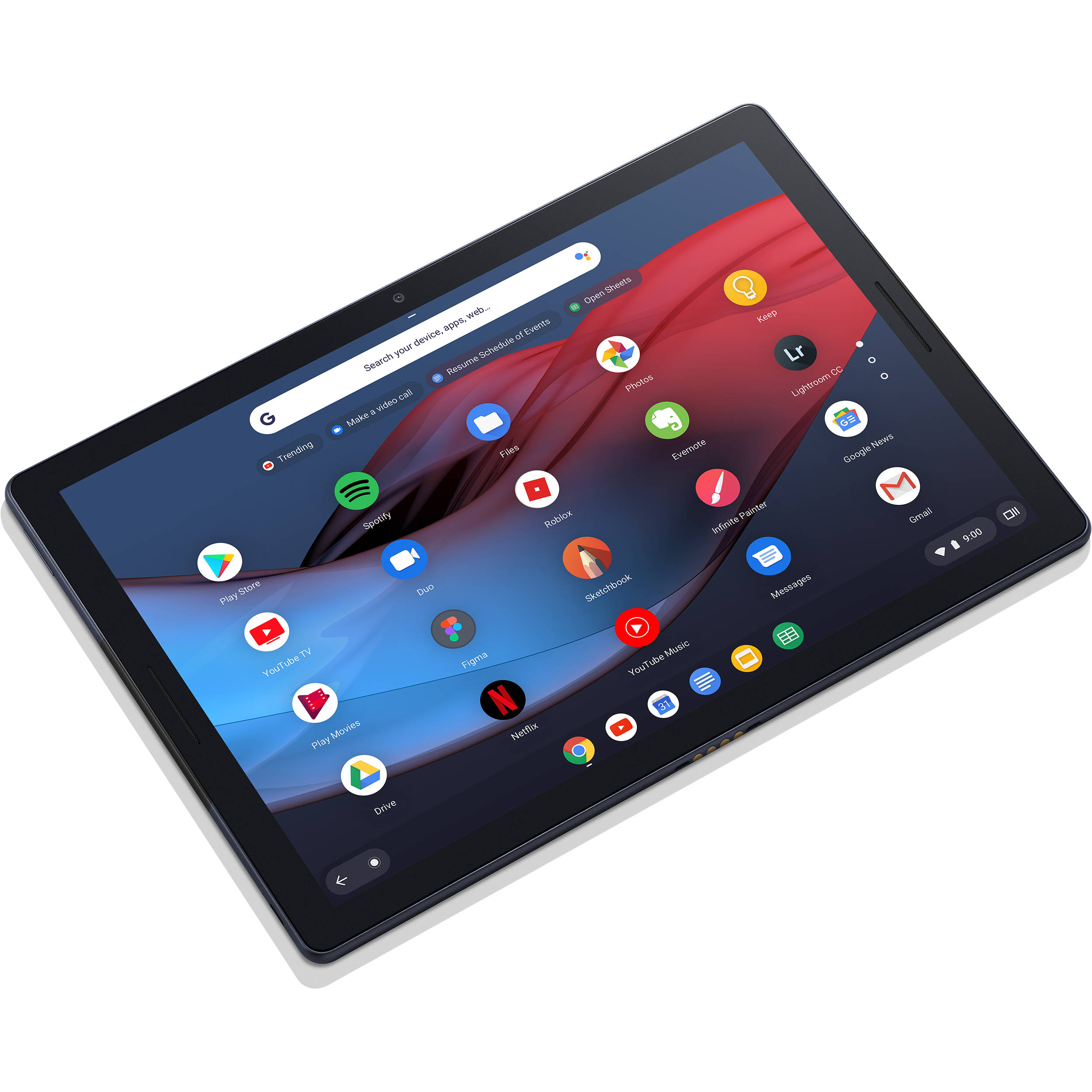
Image result for pixel slate

Pixel Slate & ChromeOS


Despite sharing the "Pixel" name the Pixel Slate is a ChromeOS device and Google's first (and only?) ChromeOS tablet.  I'm a big fan of ChromeOS but have only used it as a laptop.  Even when I'm using the Pixelbook, which can flip to be used in tablet form, I've only used it as a laptop since I find  it too bulky to use as a tablet.  The Slate doesn't come in a 10" form factor (ASUS has released a 10" ChromeOS tablet that has been excellent) and is only available with a 12" screen.  While the Slate can be viewed as a Pixelbook without a keyboard, that doesn't do it justice since it feels a lot more comfortable when held then a keyboard-less Pixelbook.  Still, I was somewhat hesitant to use a 12" tablet, but there are additional advantages with the Slate that ultimately led me to get it: Android support, Linux support and laptop mode.

When a keyboard is attached, it behaves just like a ChromeOS laptop.  This is essentially a 2-in-1 device which is useful when traveling since I don't need to bring a tablet and a laptop with me.

ChromeOS also don't get re-skinned like the Android launcher by OEMs so the experience is the same across all devices across all manufacturer.

Android Apps


ChromeOS now supports running Android apps so I can still access my Android apps although I prefer to use the web version since I now have a full Chrome browser.  In tablet mode, though, some apps are much more intuitive to use the Android version.  It's pretty clear that many web applications assume the user is using a desktop machine rather then one that uses touch as it's main interaction mode.   These are the times when the Slate will give the impression that ChromeOS is not very polished when compared to Android but in general it seems to be more on the app developer then the OS.

I have noticed that sometimes Android apps tries to start and either takes a while to come up or run into an issue.  I usually restart the tablet in these situation and the issue is fine.

Linux


ChromeOS is now capable of running Linux so I can do all my software engineering work without having to switch to developer mode. 

This a big deal for me as this allows me to just bring the Slate instead of a tablet and a laptop pair.

Accessories


I mainly will use laptop mode when I'm traveling.  While the on-screen keyboard works fine when I'm  using the Slate at home as a tablet, when doing a lot of typing it is still easier to have a physical keyboard.  I bought the Brydge C Bluetooth keyboard.  This keyboard can also be connected directly to the Slate and used in wired mode.

Brydge C-Type

For a mice, I use the Microsoft Surface mouse and I have a Pixel Pen.

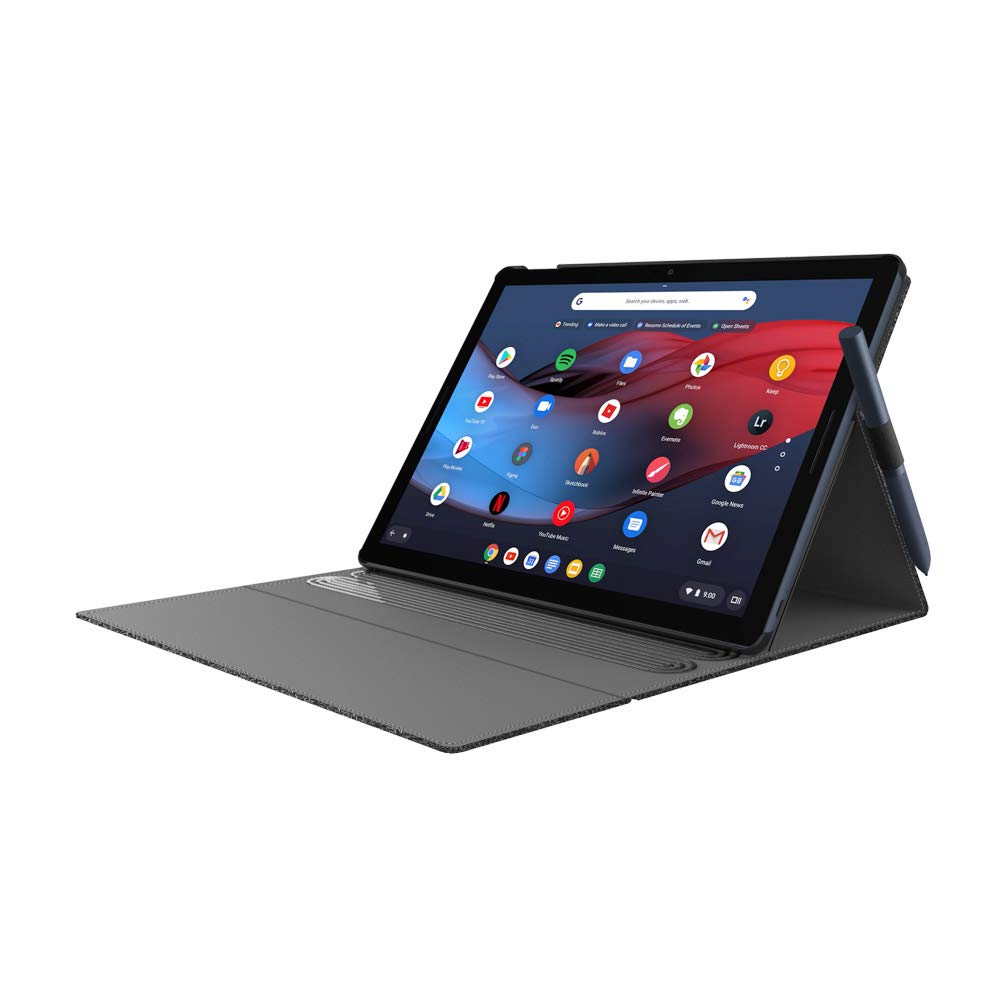
At home, I use a hand strap to make holding the tablet with one hand a little more secure and when traveling I use an Incipio Carnaby Google Pixel Slate Folio  case for a little bit of protection, to stand up the Slate and can hold the pen.

Performance


The knock against the Pixel has been (1) performance and (2) sometimes it doesn't feel very "tablet" like.  The latter is primarily because the web apps often are built assuming you're using a mouse+keyboard and android apps often are designed for such a big screen.  I personally found it to be fairly minor but if you use Android apps exclusively then sticking with a Android tablet might be better.

For the former, most of the negative stems from the low end Pixel Slate that were too under powered.  I have the i5 model and the performance has been fine.  The only time where I felt the Slate is slow is when powering on.   It takes a few seconds after hitting the power button before seeing the Google logo appear (this is when the Slate is completely turned off).  Recovering from Sleep is fast and the screen can be unlock with your finger print.

Conclusion


The Pixel Slate is a great dual purpose device.  When used as a tablet it works pretty well but starting Android apps don't feel as fast.  When used as a Chrome laptop, add the keyboard, mouse and folio case and it will be a very serviceable laptop especially for traveling or as a secondary computer (and primary tablet).

Saturday, December 23, 2017

Youtube TV vs Hulu

Youtube TV and Hulu TV are two options for cord-cutters to get live TV.  After trying each for a few months, I decided to go with with Youtube TV because of its superior quality even though it had a smaller channel line-up.

Saturday, August 26, 2017

Traveling Conveniences


Modern day traveling has never been easier (buy a ticket online and you can soon be flying to a far-away exotic location), but it is also full of hassles. While we no longer have to deal with things like traveler checks (credit cards are more widely accepted) and bulky books (an entire library can live on your phone), we’re saddled with new inconveniences such as luggage restrictions, security checks, and providing power to our growing list of electronic devices.

Thursday, June 8, 2017

Moving from Blogger to Hugo

I really liked Blogger and I’ve hosted my blog on it since 2011. It was free (still is), but still had all the essentials features for a blog at the time and I like that it was integrated with Google.
My blogging needs haven’t changed since then but the world have evolved and Blogger no longer have all the essential features necessary for a blogging platform. Specifically, I’m talking about Blogger’s lack of support for SSL/TLS for custom domains. I could accept the dated editor controls, quirkiness in the WYSIWYG UI, and limited customization of themes, but there’s no excuse for not having https enabled on a web site anymore.
I’ve now moved Lazy Hacker Babble from Blogger to Hugo + Google App Engine. Hugo is a static site generator written in Go. It takes your markdown file and generates an entire web site consisting of static files so it doesn’t require databases runtimes, extra libraries, etc. Since it’s written in Go, Hugo comes as a stand-alone binary so there is no need to install a bunch of extra software in order to run it.

Wednesday, June 7, 2017

Setting up HTTPS on App Engine With a Custom Domain

The Go programming language provides a great tool, go get, to fetch packages.  A common use case is to get a package that is hosted on Github:

Saturday, May 13, 2017

Hootoo Travelmate Elite and Using Chromecast In Hotels

Our family always brings a Chromecast with us when we travel so we can watch our video library on the TV.  The challenge has always been getting it to work in hotels especially ones that require a password to access its wifi.

Monday, February 20, 2017

Yubikey, U2F and protecting your accounts.

Setting up 2-factor authentication is an important step to keeping your online accounts safe.  For many people, this comes in the form of having an additional code that must be entered in addition to their passwords such as those that is sent to their phones through SMS or using an app like Google Authenticator.

Admittedly, this additional security comes with an additional inconvenience of needing to have your phone nearby and looking up the code which probably turns off a lot people.  To simply the process, Google, Yubico and some partners developed Universal 2nd Factor (U2F) which is now handled by the FIDO Alliance.  This open standard uses an hardware key that you insert into the computer's USB slot (or using NFC) instead of typing a code.

Google, Facebook, Dropbox, Github and a host of other services now support this.  The keys can be purchased from Amazon and ranges from $18 to $50 depend on the features you want.  For primarily Fido/U2F support, only the $18 Yubikey is needed.


Sunday, February 19, 2017

Google Wifi, mesh networks, redundancy

Google Wifi is a new device that can create a wireless network "mesh" by simply adding wifi points to your network.  It is super simple to setup.  Simply plug it in and add it to your home network through the mobile app.

Setting up a home network usually involves having a router (likely with wifi capabilities) that devices connect to.  Single router solutions like Asus RT-ac68u and Google OnHubs have very good reach and for most situations are going to be all you need.  The RT-AC68U allows you to tweak and configure to your heart's delight. The OnHub leverages Google's technology to monitor and configure itself for maximum performance thus regulating managing your router to the background.

There is one flaw to the single router solution which I painfully experienced recently:  single point-of-failure.  One day, my router just stopped working and nothing I did could bring it back to life.  When the internet is down in my house... well, the natives are not happy and good 'ol dad will hear about it!  In this situation, it usually mean going out and buying a replacement ASAP and if it happens at night that'll mean finding ways to pacify the citizens' unrest until that replacement can be bought.  Fortunately, in my case, I had an unused router left in storage.

"Redundancy" is a good thing in the technology world.  This brings me back to Google Wifi.  Most discussions about Google Wifi focuses on its wireless mesh capabilities, but each Google Wifi unit can also be a router.  In fact, unless you are using an OnHub as your router, at least one unit has to be the router.  If one unit fails that will just mean the reach of the home network is smaller but the network is still up.  If it is the unit that serves as the router that fails, simply using one of the other units as the router.

Google Wifi works great, but the added benefits of the redundancy makes me really recommend it especially...

(T-shirt available from snorgtees.com)

Thursday, July 21, 2016

Updating VIM for Go (Golang) Development

Since my last post, setting up Vim for Go development is not only easier but also makes developing with VIM much more powerful.  Just a single plugin, vim-go, is all that is needed for the Go-specific stuff and a host of new tools is now available to handle things like refactoring, linting, error checking, and more.

Go Tools

Make sure that you have Go installed and then get the various Go tools.

goimports

Go provides a lot of use packages that can be imported but it doesn't like it when you import a package and not use it.  Goimports will automatically insert the right imports for you by looking at your code and will remove unused imports from your source.  It's a great time saver!

go get golang.org/x/tools/cmd/goimports
godef

Godef lets you jump to the location where a symbol is defined.

go get -v code.google.com/p/rog-go/exp/cmd/godef
go install -v code.google.com/p/rog-go/exp/cmd/godef
golint

Golint will lint your source and warns you of potential issues.
go get github.com/golang/lint/golint
gorename

Gorename helps to refactor Go code.

go get golang.org/x/tools/cmd/gorename
errcheck

Errcheck checks your code for actual errors that isn't just lint issues.

go get github.com/kisielk/errcheck
gocode

Gocode provides autocomplete of your Go code.  When combined with vim-go and YouCompleteMe plugins, it allows autocomplete to appear as you're typing.


go get -u github.com/nsf/gocode (-u flag for "update")
It's a bit different for Windows so follow the instruction from the link for more details.

gotags

Gotags generate tags for Go code.  Combined with Tagbar, it will provide a pretty display of the tags in your code.

go get -u github.com/jstemmer/gotags
Guru

Guru is a tool that integrates with editors to help it understand Go code.

go get golang.org/x/tools/cmd/guru
go build golang.org/x/tools/cmd/guru

Oracle (Deprecated and replaced by Guru)

Oracle is a source analysis tool for Go program.


go get code.google.com/p/go.tools/cmd/oracle

Vim Plugins

It used to be that you would manually install a vim plugin for each of the various Go tools as well as using the the plugins that comes with Go itself.  Now, everything has been consolidated into a single Vim plugin, vim-go, and that's all you really need when it comes to Go-specific plugins.  A few other plug-ins such as Tagbar and YouCompleteMe are useful to complement your development environment, though.  I highly recommend that you use Vundle to manage your plugins.

vim-go

Vim-go brings together all the various plug-ins and feature for Go development in VIM including autocomplete, snippet support, improved syntax highlighting, go toolchain commands, etc. in a single package.

YouCompleteMe

YCM is a fast code completion engine for VIM that works as you type.  YCM requires VIM 7.3.584 or above and CMake (you'll need to compile the extension after it's downloaded).

Tagbar

A great way to view the tags in your code.  This requires that you have Exuberant Ctags and gotags installed.

Bufexplorer

My favorite plugin for navigating between VIM buffers.

.vimrc


" Go Specific Stuff
                                                             
au BufRead,BufNewFile *.go set filetype=go                                     
autocmd FileType go setlocal softtabstop=4
autocmd FileType go setlocal shiftwidth=4
autocmd FileType go setlocal tabstop=4

" go-def settings
let g:godef_split=2
let g:godef_same_file_in_same_window=1

" go-vim settings
let g:go_fmt_command = "goimports"
let g:go_highlight_functions = 1
let g:go_highlight_methods = 1
let g:go_highlight_structs = 1

" tagbar settings                                                                  
let g:tagbar_type_go = {
    \ 'ctagstype' : 'go',
    \ 'kinds'     : [
        \ 'p:package',
        \ 'i:imports:1',
        \ 'c:constants',
        \ 'v:variables',
        \ 't:types',
        \ 'n:interfaces',
        \ 'w:fields',
        \ 'e:embedded',
        \ 'm:methods',
        \ 'r:constructor',
        \ 'f:functions'
    \ ],
    \ 'sro' : '.',
    \ 'kind2scope' : {
        \ 't' : 'ctype',
        \ 'n' : 'ntype'
    \ },
    \ 'scope2kind' : {
        \ 'ctype' : 't',
        \ 'ntype' : 'n'
    \ },
    \ 'ctagsbin'  : 'gotags',
    \ 'ctagsargs' : '-sort -silent'
\ } 

Friday, August 1, 2014

Use Google Drive For Free Web Hosting on Custom Domains

Update:  Google Drive no longer offer the ability to serve web pages so this post is no longer relevant.

Google Drive allows a very convenient and free way host web pages.  You simply share the folder to the public and anyone can go to http://googledrive.com/host/<folder id> with their browser and see your web site.  Publishing a page or any file is just a matter of dropping it into the drive folder.  However, Drive currently doesn't support custom domains so if you have your own domain (e.g. example.com) you can't have http://www.example.com be served from Drive.

There is a site, http://gweb.io, that allows you to do this for about $10/year, but I've never used them or know much about them.  Instead, this article will describe one way to roll your own using Google App Engine (GAE) and if your site only have moderate traffic you should be able to stay within its free quota.  Note:  this was a quick hack I did and not meant to be a high performance web site.  Don't be running your own Google with this!  :-)

The basic idea is very simple.  GAE allows you to have custom domains so you create an app on it and it can map to your domain (e.g. http://www.example.com).  What the app will do is take the URL, translate it to the googledrive.com URL and fetch the page for you and return it through app engine.

From 
http://www.example.com/page1.html 
To 
http://googledrive.com/host/page1.html
With the mapping, use GAE's FetchURL service to grab the file and pass it back to the caller.  That's it.


Follow the GAE tutorial on setting up a basic helloworld app (such as this one for Go).  Instead of hello.go, I have file called "fetch.go" and instead of "package hello" it is "package fetch".  For the content of fetch.go:

Remember to put in your folder ID in fetch.go at line 20 (I should've made it a constant and easier to spot).

Now give it a try on your local server to make sure it works and then upload your project.  If everything is working well, you can them map this app to your domain.  That's it!

Now, this is not very optimized and only really recommended for small sites.  For example, this will fetch from googledrive on every request and the browser might not be able to cache it.  For the former, it would be easy to insert memcache to keep a cached version on the server side.  For the latter, we'd want to stick in some headers to help browsers cache the file unless the file is updated very frequently.

Anyway, with GAE's generous free quota, this might work well for many small sites out there to serve some examples web sites or landing pages.

One question we might ask ourselves is that why use Drive at all if you're using GAE already?  For me it was mainly convenience of being able to just drop the file into a drive folder and 'cause I just wanted to write some Go code on GAE.

Saturday, April 2, 2011

Why I Migrated From Wordpress to Blogger

For the past 5 years, I self-hosted my own instance of a WordPress blog running on my hosting service, but I got tired of having to do my own upgrades and applying patches.  Admittedly, WordPress is pretty easy to upgrade.  I'm not a professional blogger who needs a lot of publishing features and I don't spend too much time customizing the look of my blog.  Initially, running my own blog allowed me to get what I wanted/needed, but over the past 2-3 years I've only upgraded because of security updates.   Services such as Blogger now provide everything I need so that I can just write and not have to worry about running a blog.

Choosing to use Blogger might surprise people since it's more common these days to go from Blogger to WordPress.  While being a employee of Google adds a little motivation to dogfood my company's own product, I was looking at Blogger even before joining Google.  Blogger is a simpler blogging platform then WordPress, but still have some advance features such as built in integration with AdSense and Amazon for monetization and blog statistics.

Blogger also have recently been geting some updates on its template system that allowed me to pretty closely match the look and features of my WordPress site.

What ultimately tipped the decision, however, was that I wanted to use my own domain name (lazyhacker.com) which Blogger provides for free while WordPress charge a fee.

Saturday, March 20, 2010

Google App Engine can further encourage Open Source.

One of the challenges of open source web applications are that they require users to have their own web hosting solution in place, but recently I've been noticing more open source web applications being released as Google App Engine applications. This is a great direction as it removes the barrier of having to setup one's own web servers, network access, etc. Users can download the the GAE project's source and either run it locally using the GAE SDK's own web server or use the free GAE instances that Google provides.

I've been using GAE a lot recently and have come to really like it despite some of the limitations.

Friday, January 15, 2010

Chrome OSX with Bookmark Manager

The latest dev channel build of Google Chrome now have a basic bookmark manager and cookie manager.

With a bookmark manager, even though it is very basic, Chrome for OS X has the basic set of features that I feel makes up a browser and might can make Chrome my default browser on OS X soon.

Monday, January 11, 2010